IAM Users, Groups and Policies How to use IAM Users, Groups and Policies
IAM User
IAM supports IAM Users. IAM users are identities that have privilege to use AWS resources in an account. It can be configured using CLI, SDK, CloudFormation or AWS Console with users (or roles) with administrative privileges. The IAM user can login to AWS via console and/or also use access keys (access and secret keys) to interact with AWS. The access keys can be deactivated, deleted, and regenerated. The IAM user will remain active until deleted.
Note that if the access keys are leaked, then anyone who has access to it has the same permissions as you have. Therefore, it is better to rotate the access keys regularly and it gives it minimal permissions.
It is better not to have access keys in your application code. If you have accidentally checked it in your source code control, it would be visible to a wider group.
You should minimise the use IAM users whenever possible. For example,
- For console login, consider integrating with your internal identity service using AWS Identity Center (previously known as SSO). If you need to IAM user with console access, then use MFA.
- For application integration, use IAM roles when possible.
- For providing on-premises servers access to your AWS resources, use IAM Roles Anywhere when feasible.
IAM User Groups
User groups are essentially a collection of IAM users. Groups are helpful and it lets you define permissions for multiple users at once. Thus, it makes it easier to manage permissions for several users. An IAM group can contain unlimited users and a user can be part of many groups. Note that the user groups cannot be nested.
IAM Policies
IAM policies are JSON documents that define the permissions of a resource. AWS supports JSON for composing the policy document. You may write CloudFormation or CDK using different language that eventually translates into JSON.
By default, all permissions are denied and if you somehow set permissions at different levels, then the more restrictive permissions apply. Any DENY will be overwrite any ALLOW for the same resource or permission.
An IAM policy has the following structure with minimal elements.
{
  "Version": "2012-10-17",
  "Statement": [
    {
      "Sid": "StatementID",
      "Action": [
		"list_of_permissions"
      ],
      "Effect": "Allow",
      "Resource": "ARN of the resource or * to specify all resource"
      }
    }
  ]
}
- Version: Refers to version of policy document. You can stick to using 2012-10-17.
- Statement: Policy document. It can contain one or more policies.
- Sid: Optional Statement ID
- Effect: Allow or Deny.
- Action: List of “allowed” or “denied” permissions
- Resource: ARN of the resource. It can contain one or more resources. Specify * to denote all resources. (* is useful for permitting admin like permissions)
- Principal: (not in the example). Needed for resource-based policies.
- Condition: (not in the example). Check for conditions to apply the permissions. For example, you can check for certain tags before applying.
For resource ARN (Amazon Resource Name), it has the following basic structure.
arn:{partition}:{service}:{region}:{AccountID}:{Optional_resource_type}:{resource-id}
So, for a S3 bucket, an arn could be
arn:aws:s3:ap-southeast-2:987654321012:my-bucket/*
## S3 endpoint is global, thus region & account is not needed. So, the arn could be
## the * denotes to all objects in the bucket
arn:aws:s3:::my-bucket/*
## to select objects under a prefix
The Condition can be used to check for additional properties that limits the permission. For example, it can be used to check for tags or source IP, etc. It can check for string, numeric, datetime and boolean properties. Following is an example of a policy that specifies that objects in S3 can only be downloaded over TLS.
{
  "Version": "2012-10-17",
  "Statement": [
    {
      "Sid": "Stmt987654",
      "Action": [
        "s3:GetObject"
      ],
      "Effect": "Allow",
      "Resource": "arn:aws:s3:::my-bucket/my_prefix/*",
      "Condition": {
        "Bool": {
          "aws:SecureTransport": "false"
        }
      }
    }
  ]
}
Attach IAM Policy to IAM User
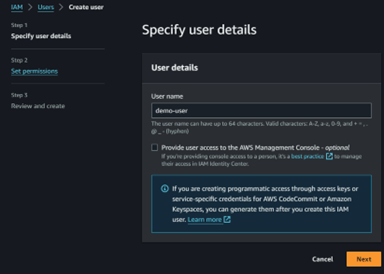
Once the IAM policies are setup, you can attach it to the IAM users. The IAM users can have one or more policies. It can be attached as shown below.
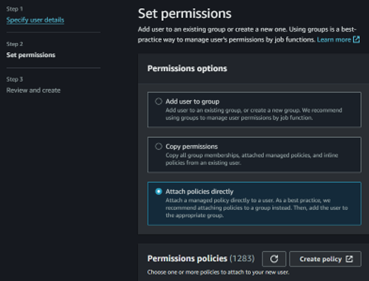
From permission policies section, select the policies you configured or want to apply to the user and continue.
Attach IAM Policy to IAM User Group
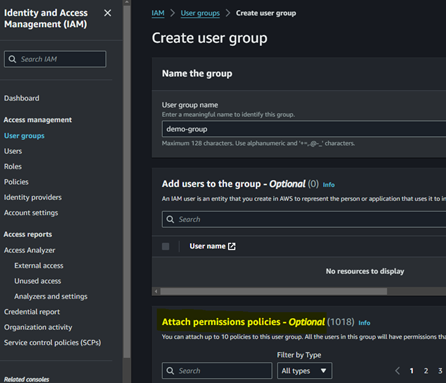
IAM policies can be attached to the IAM groups from console and CLI. Users in the groups will obtain the same permissions as defined the IAM policies in the group. IAM policies can be attached to the group like adding the policies to user.